
Power Schedules makes it possible to manually schedule a site power limit for your chosen (recurring) time slots. To configure one-time schedules you need to have a SLB/DLM Plus subscription activated on your location. This is useful if the grid connection at your location is limited, or if you want to make more use of solar energy during the day. To enable the full Power Schedules feature including creating/updating/deleting both Single & Recurring Schedules, you need the upgraded SLB/DLM Performance subscription at your location.
How it works:
- Schedule in which time slots there needs to be a limit on the chargers of a site location.
- When using other EMS products the charging station(s) will be limited to the lowest limit.
- If you have set up ‘Priority Charging’ this will be overruled by the Power schedule. For example if the charging profile sets the limit to 0kW, a priority charger will get 0kW
- MEC Power is controlled from the cloud. So if the connectivity is lost for more than 15 minutes, all chargers fall back to the set limit in the charging stations themselves.
- A newly inserted schedule is almost immediately acknowledged. Depending on the size of the site, there is a recalculation time, post which the newly inserted schedule is applied.
- The latest inserted Power schedule takes priority in overlapping schedules. The latest active schedule is shown by a darker blue colour. The hierarchy is as follows: newly created single schedules prioritizes over old existing schedules. Also single schedules prioritize over recurring schedules (use them e.g. as overrides to existing Recurring Schedules)
-
History: past schedule activations are logged so users can review what limits were active historically but they can never be changed after they have happened.
Two types of schedules
There are two types of Power Schedules:
- One-time schedules: You schedule a limit for one period at the time.
- Recurring schedules: You want to plan a limit recurring for the same period.
How to start using it.
-
Click on 'locations' in the left hand menu. Click on the tile of the location where you want to set up the schedule.
-
Click on 'Power schedules' in the left hand menu. Be aware that this is only available if you have Load Balancing subscriptions for the assets on this location.
-
You see a calendar opening. Click on the button '+add schedule' in the top right corner of the page

One-time schedules
-
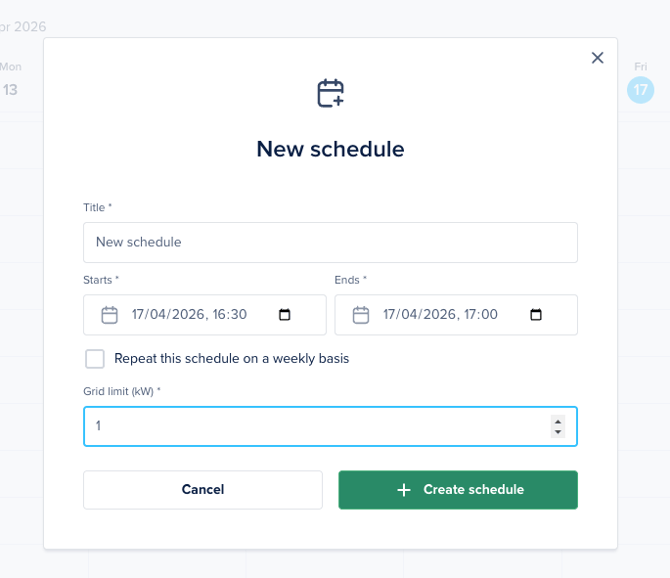
Fill in the next fields:
- Title: The name of your schedule
- Start date/End date: Fill in what date and time you want the schedule to start and stop
-
Group limit/Grid limit: What should be the limit on this group of the chargers or on this grid.
-
Click on + Create schedule
-
To edit the one-time schedule In the calendar, click on the schedule (end date must be in the future to edit). Schedules in the past cannot be edited.
Recurring schedules
To enable the full Power Schedules feature including creating/updating/deleting both Single & Recurring Schedules, you need the upgraded SLB/DLM Performance subscription at your location.
-
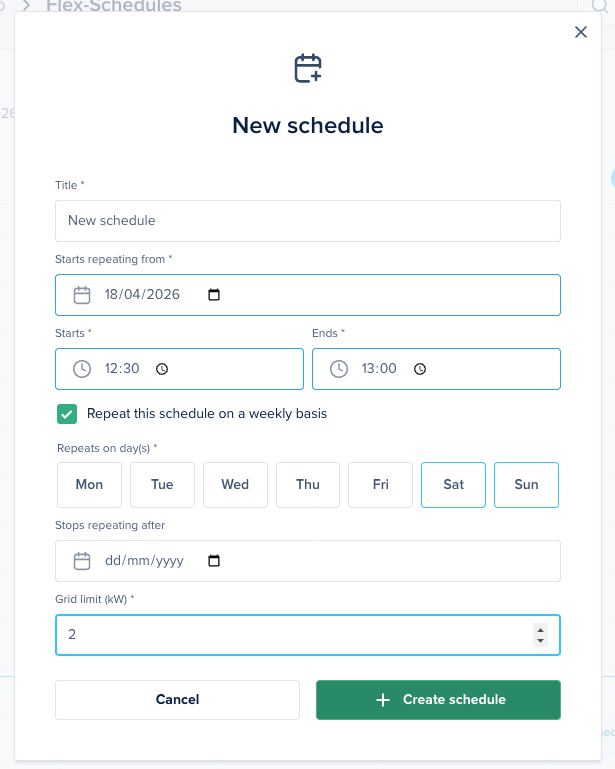
Fill in the next fields:
- Title: The name of your schedule
- Start date/End date: Fill in what date and time you want the schedule to start and stop
- To setup the repeating schedule check the 'Repeat this schedule on a weekly basis' box. More options will pop up.
-
Group (only visible if applicable): If the location has multiple groups, choose which group this schedule applies to.
-
Group limit: What should be the limit on this group of the chargers or on this grid.
-
Click on which day you want the schedule to repeat weekly.
-
Fill in an end date. Leave this field empty if you want to repeat the schedule indefinitely.
-
Fill in the grid limit
-
Click on + Create schedule
-
To edit the one-time schedule In the calendar, click on the schedule (end date must be in the future to edit). Schedules in the past cannot be edited.
If you want to upgrade to SLB/DLM Performance we can set up the subscriptions for you. If you are interested in recurring MEC Power please contact our sales team. You can do this by clicking on 'create support ticket' at the top of this page and select 'Sales request' or send an e-mail to sales@maxem.energy.
How to check your Power schedules:
- In the Maxem Energy Cloud click on ‘Locations’ in the left menu. Click on the tile of the location with MEC Power set up.
- Click on ‘Power schedules’ in the left menu. A weekly calendar will open with the set up schedules visible.
- Within each time slot you can see the name and the kW limit.
- When a schedule has passed it will be greyed out.
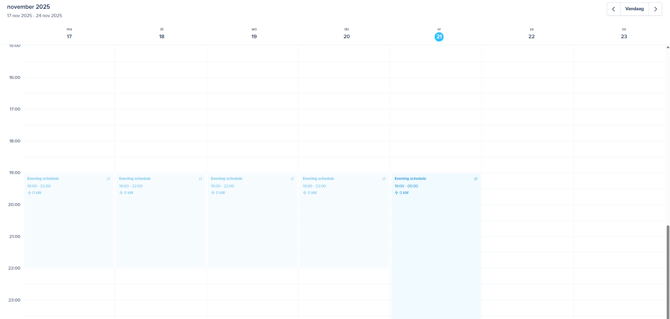
- To view the different weeks click on the arrows next to today on the top right corner.